How to configure LDAP with AD on an Exacq VMS Server
How to Configure LDAP in exacqVision (Microsoft AD + Azure AD, LDAP + LDAPS)
This guide shows how to connect an exacqVision server to:
- Microsoft Active Directory (on-prem AD DS), or
- Azure AD via Microsoft Entra Domain Services (Azure AD Domain Services / “AAD DS”)
…and how to use either:
- LDAP (389), or
- LDAPS (636 / SSL)
0. Know what “Azure AD LDAP” actually means
Microsoft Entra ID (formerly Azure AD) does not natively expose LDAP. When people say “Azure AD LDAP”, they typically mean Microsoft Entra Domain Services (Azure AD DS), which provides a managed domain compatible with LDAP/LDAPS for legacy apps.
So your “directory type” choice is usually:
- On-prem AD DS (your domain controllers)
- Microsoft Entra Domain Services (Azure AD DS) (managed domain in Azure that integrates with your Entra ID tenant)
1. Prerequisites and compatibility
Licensing
- The ActiveDirectory/LDAP tab is only available with exacqVision Enterprise.
Version notes (important for Azure AD DS integrations)
- If you are integrating with Azure AD DS / Entra Domain Services, confirm your exacqVision Server/Client versions meet the minimums described by Exacq for “Azure AD LDAP authentication” support.
Information you need from IT
Regardless of AD vs Azure AD DS, collect:
- Directory host (FQDN/IP)
- Base DN
- Bind account + password
- Whether you will use LDAP or LDAPS
- If using LDAPS: certificate trust requirements (and whether exacqVision server needs a CA cert imported)
2. Choose your connection mode (quick decision guide)
Option A — Microsoft AD (on-prem)
- Hostname/IP: a domain controller (or a load-balanced LDAP endpoint)
- LDAP: port 389
- LDAPS: port 636, enable Use SSL
Option B — Azure AD via Entra Domain Services (Azure AD DS)
- Hostname/IP: the managed domain endpoint for Azure AD DS
- LDAP: typically 389 (within VNet / private connectivity scenarios)
- LDAPS: 636, requires enabling “Secure LDAP” in Azure AD DS and certificate setup
If your exacqVision Server is on-prem and Azure AD DS is in Azure, you’ll also need network connectivity (VPN/ExpressRoute) and firewall rules to allow the LDAP/LDAPS ports.
3. Configure LDAP/LDAPS in exacqVision
- Open exacqVision Client
- Go to Config (Setup)
- In the navigation tree, select your server → Configure System
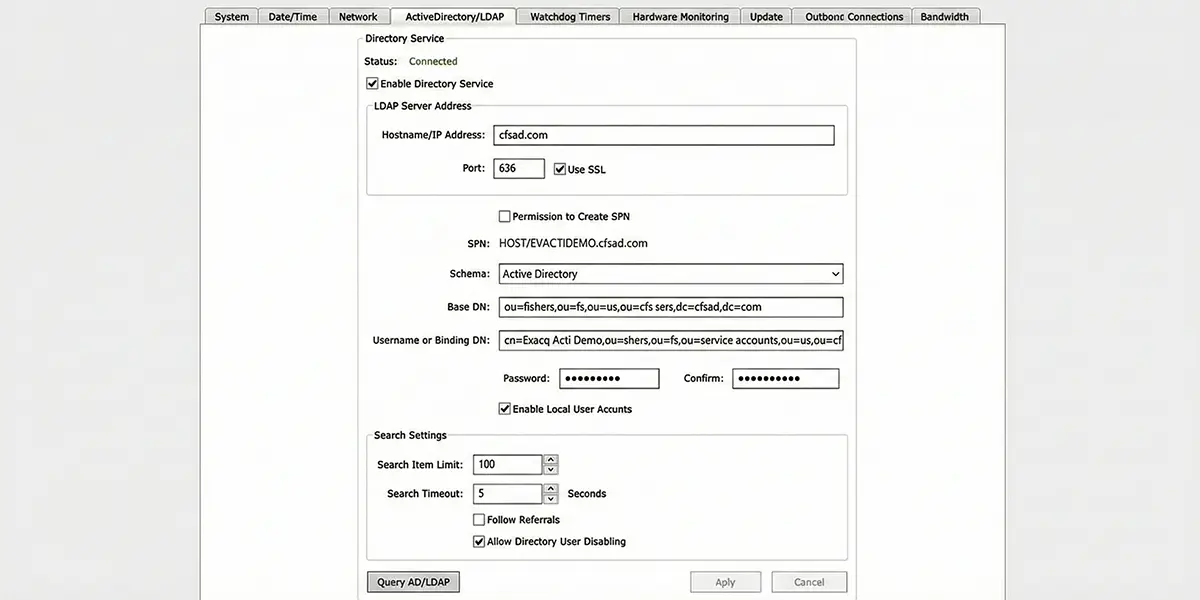
- Open the ActiveDirectory/LDAP tab
- Check Enable Directory Service
- Set the following fields:
Required fields
- Hostname/IP Address
- AD:
dc01.example.com - Azure AD DS:
aaddscontoso.com(your managed domain name / endpoint)
- AD:
- Schema
- Select the appropriate LDAP schema option available (commonly “LDAP Schema” in many deployments)
- Password / Confirm
- The bind/service account password (or whatever the tab expects in your deployment)
Port + encryption (LDAP vs LDAPS)
- LDAP (unencrypted):
- Port: 389
- Use SSL: unchecked
- LDAPS (encrypted):
- Port: 636
- Use SSL: checked
- Click Apply
- Click Query AD/LDAP to test connectivity
4. Azure AD DS / Entra Domain Services: enable LDAPS (if you choose LDAPS)
If you chose LDAPS with Azure AD DS:
- In Microsoft Entra Domain Services, enable Secure LDAP
- Configure certificates per Microsoft guidance
- Ensure the network security group/firewall rules allow TCP 636 only from trusted source IPs (recommended)
- Use that Azure AD DS endpoint + port 636 + Use SSL in exacqVision
5. Add LDAP users/groups to exacqVision (so they can log in)
Once the directory connection succeeds, map directory identities into exacqVision.
Enterprise Users (recommended for multi-system environments)
- Open Enterprise Users
- Click Query AD/LDAP
- Choose a domain/Base DN (if prompted)
- Search for the user/group and select it
- Select which servers the user/group can access
- Click Apply to Selected Systems
- In the Add Systems window, select Use Single Sign-On (important)
If you don’t select Use Single Sign-On, LDAP users/groups can fail to log on.
Single-system environments
Use the server’s Users window and the Query AD/LDAP option there to search and add directory users/groups.
6. Common troubleshooting
Connection test fails (Query AD/LDAP)
- Confirm DNS + routing from the exacqVision Server to the directory endpoint
- Confirm firewall ports:
- LDAP: 389
- LDAPS: 636
- Confirm bind account credentials
- Confirm Base DN is correct (wrong Base DN = “no results” or failed queries)
LDAPS issues
- The most common cause is certificate trust
- Your exacqVision Server may need the issuing CA certificate imported/available so it trusts the directory’s LDAPS certificate.
- If enabling LDAPS flips the port/connection behavior, re-test with Query AD/LDAP immediately after changes.
Users can’t log in after being added
- Re-check that Use Single Sign-On was selected when applying the LDAP user/group to the target server(s).
7. Security recommendations (practical defaults)
- Prefer LDAPS over LDAP whenever possible.
- For Azure AD DS, avoid exposing LDAPS broadly to the internet; restrict TCP 636 to known source IPs.
- Use a dedicated service account for binds, with least privilege needed to read users/groups.
- Keep a local admin account enabled until LDAP auth is confirmed working end-to-end.
Frequently Asked Questions
Always use LDAPS (port 636) in production environments. Standard LDAP transmits credentials in cleartext, which means any device on the network path can capture usernames and passwords with a packet sniffer. LDAPS encrypts the entire session with TLS. If your domain controller does not have a valid TLS certificate, you can use StartTLS on port 389 as a fallback, but a properly issued certificate (even from an internal CA) is strongly recommended.
Not directly. exacqVision uses standard LDAP/LDAPS bind operations, which Azure AD (Entra ID) does not natively support. You must enable Microsoft Entra Domain Services (formerly Azure AD Domain Services) in your Azure tenant, which provisions managed domain controllers that expose LDAPS on port 636. Once Entra Domain Services is running, exacqVision connects to it the same way it would connect to on-prem AD DS.
The most common causes are: (1) the Base DN is too narrow and does not include the OU where the user accounts reside—use a broader base like DC=company,DC=com; (2) the user is not a member of the AD security group mapped in exacqVision; (3) the LDAP filter is excluding the user's objectClass; or (4) the user's UPN (user@domain.com) vs sAMAccountName (DOMAIN\user) format does not match what exacqVision expects. Check the exacqVision server logs under /usr/local/exacq/logs/ for detailed bind failure messages.
In the exacqVision Configuration Client, navigate to Users > LDAP Groups. Add each AD security group DN and assign it an exacqVision user profile (Admin, Power User, Live Only, etc.). When a user authenticates, exacqVision queries their group membership and applies the matching profile. If a user belongs to multiple mapped groups, the highest-privilege profile takes precedence. Create dedicated AD security groups (e.g., 'ExacqAdmins', 'ExacqViewers') rather than reusing broad groups like 'Domain Users'.
LDAP itself does not support MFA—it is a simple bind (username + password) protocol. If your organization requires MFA for VMS access, consider placing exacqVision behind a VPN or zero-trust network access (ZTNA) solution that enforces MFA at the network layer before the user reaches the exacqVision client. Some organizations also use smart card authentication at the Windows OS level on exacqVision workstations as a compensating control.
Related Products